How beginners usually learn hand-drawn motion on Mac.
The hard part of learning animation is not finding a massive menu system. It is understanding why one drawing feels stiff, why the spacing on the next frame feels wrong, and why a turn or bounce suddenly reads once the timing changes. A learner-friendly tool helps by making those changes visible. That is why the current Framevia Studio feature set is promising for students, hobbyists, illustrators, and curious Mac users: it keeps the frame strip, onion skin, brushes, layers, and export path close at hand.
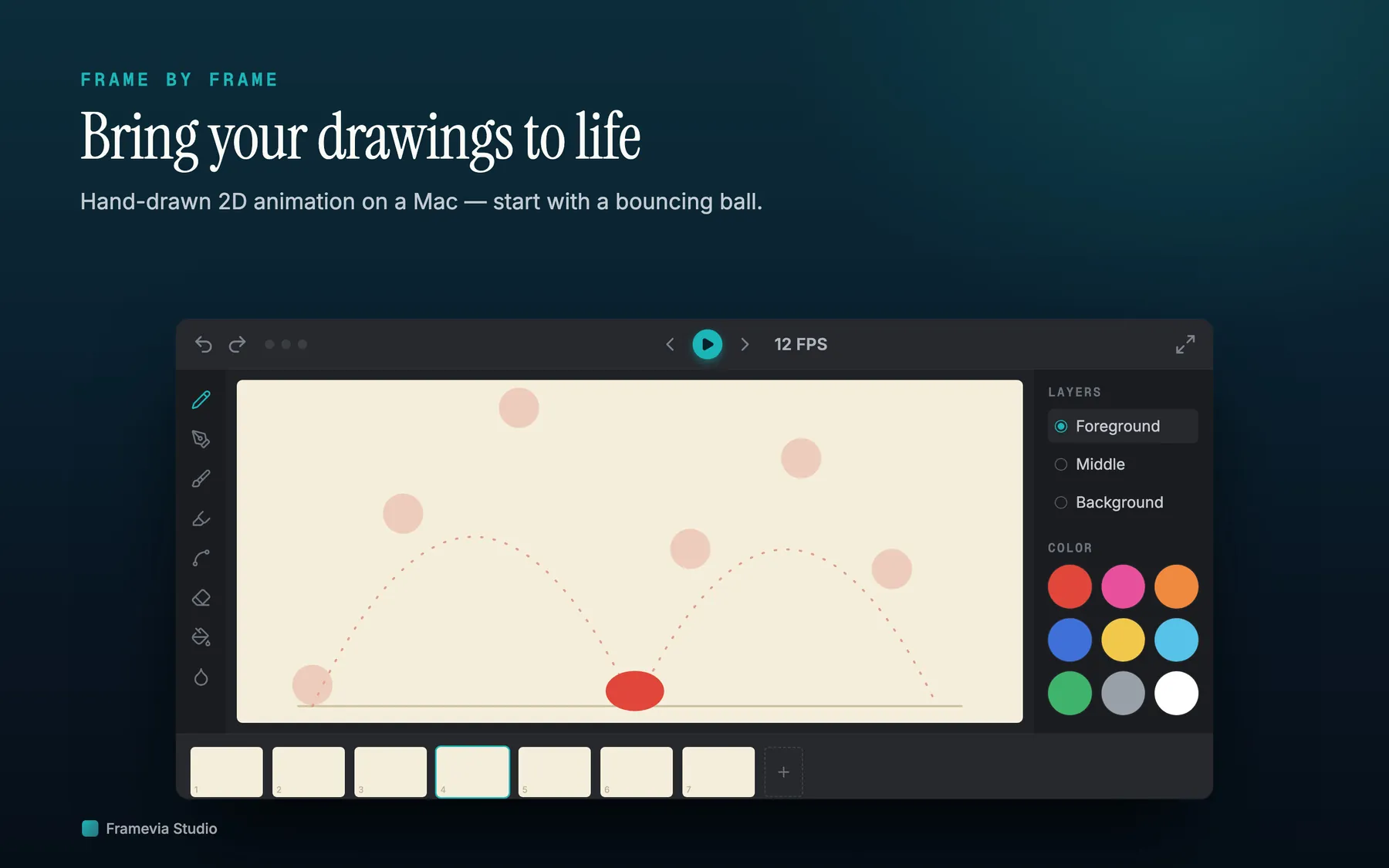
Draw directly in a frame-by-frame workspace.
The main Framevia Studio canvas is built around the fact that animation is a sequence of drawings, not a hidden timeline buried under unrelated controls. The current product page shows a visible frame strip, keyframe markers, and navigation around the current drawing. That is useful for learners because timing becomes tangible. Instead of imagining how motion might evolve, you see each frame, duplicate it, alter it, and watch the movement improve. For a beginner, that directness matters more than studio-scale complexity.
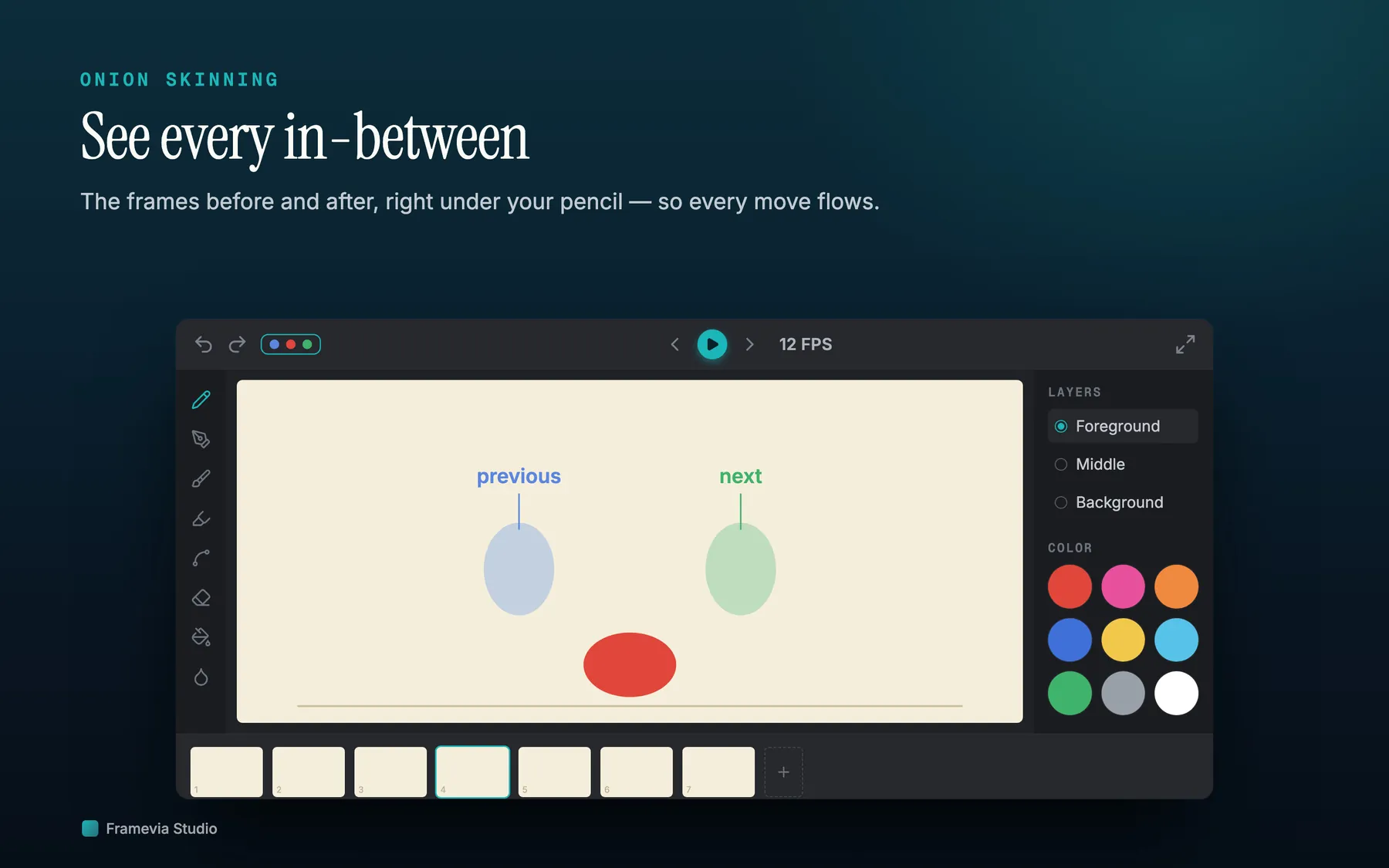
Use onion skin to understand motion, spacing, and follow-through.
Onion skinning is one of the most important beginner tools because it lets you see neighboring drawings behind the current frame. Framevia Studio's current site describes three onion-skin modes: previous frames, next frames, or both. For a learner, that turns abstract advice into something visible. You can see when a walk cycle advances too far, when a bounce loses volume, or when an arm arc jumps awkwardly. The app does not remove the craft, but it gives you the feedback loop you need to build the craft.
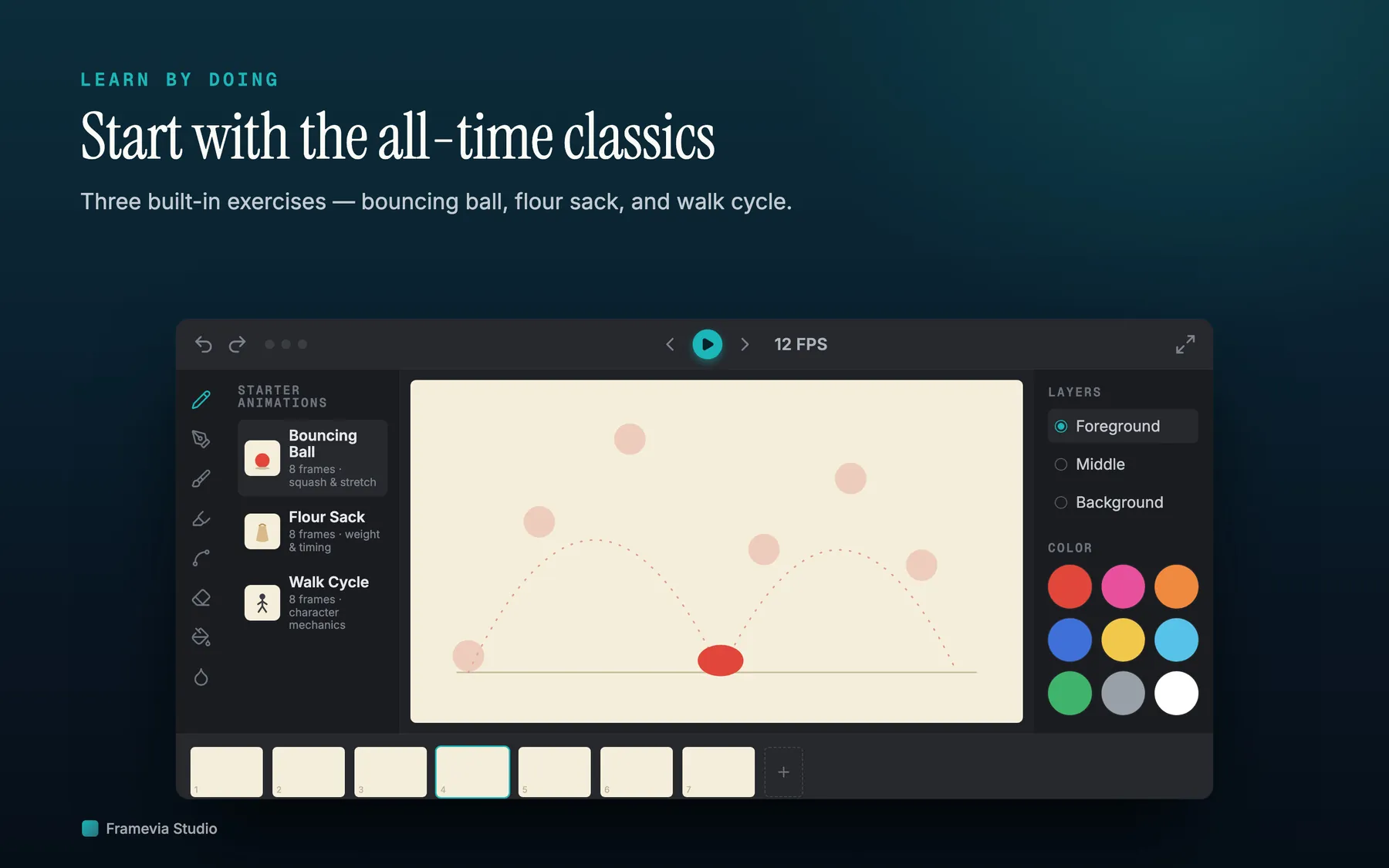
Start from exercises instead of a blank page every time.
The current product story includes starter animations, and the changelog explicitly names three starter exercises that ship with the app: Bouncing Ball, Flour Sack, and Walk Cycle. That is exactly the kind of scaffolding beginners benefit from. You can open a file that already teaches a motion problem, inspect the frame progression, and begin modifying it instead of freezing at an empty canvas. Learning animation becomes easier when the app gives you examples to study, not just a promise that you will figure it out later.
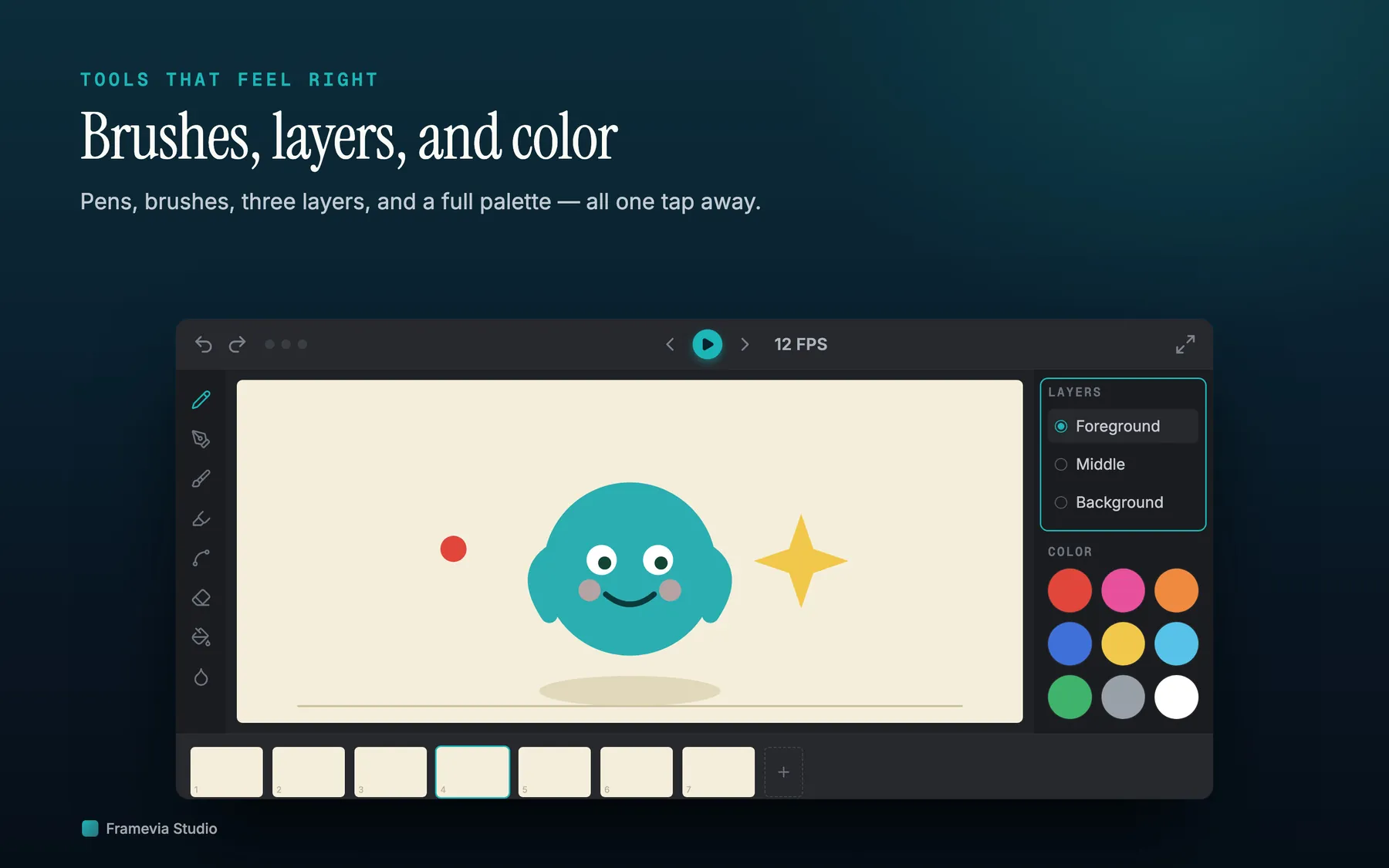
Build confidence with simple tools, layers, and color controls.
Framevia Studio's current site describes eraser, pencil, four texture brushes, fountain pen, fill, and shape tools such as rectangle, ellipse, line, and arrow. It also gives each frame a Middle and Foreground drawing layer plus an optional shared Background image. That is enough structure to learn real decisions: which layer should carry the clean line, what belongs in the shared background, when a fill is faster than brushing, and how simple shapes can block motion before detailed drawing begins. It is a focused toolset, not a toy.