File compatibility on Mac

Open modern Office files on Mac without subscribing just to touch a document.

TruePath Office is built for the practical compatibility problem: open a real .docx, edit a real .xlsx, revise a real .pptx, work with PDFs and images, then save back in place on your Mac. This page expands the hub matrix into the compatibility situations people actually worry about.

Open in Mac App Store Get launch notification

Compatibility means more than "the file opened."

Mac users searching for a Microsoft Office alternative usually do not need marketing adjectives. They need to know whether the document from a colleague opens, whether the spreadsheet still behaves like a spreadsheet, whether the slide deck remains editable, whether the PDF tools are local, and whether the result can be saved back without starting a conversion ritual. The current TruePath Office product story is appealing because it stays close to that practical test: modern Office formats, same-format save, one native Mac app, fully offline, and no telemetry stack around ordinary files.

1

Start from one app that already understands the file categories you use.

The five-editor montage on the current site is more than a beauty shot. It explains the product shape. Word documents, spreadsheets, slide decks, PDFs, and images are all treated as first-class content in one Mac app rather than as different detours into separate tools. For people who receive mixed file bundles every day, that matters. Compatibility is easier to trust when the suite clearly says which formats it is built around, instead of pretending every file type is just an export option hanging off one editor.
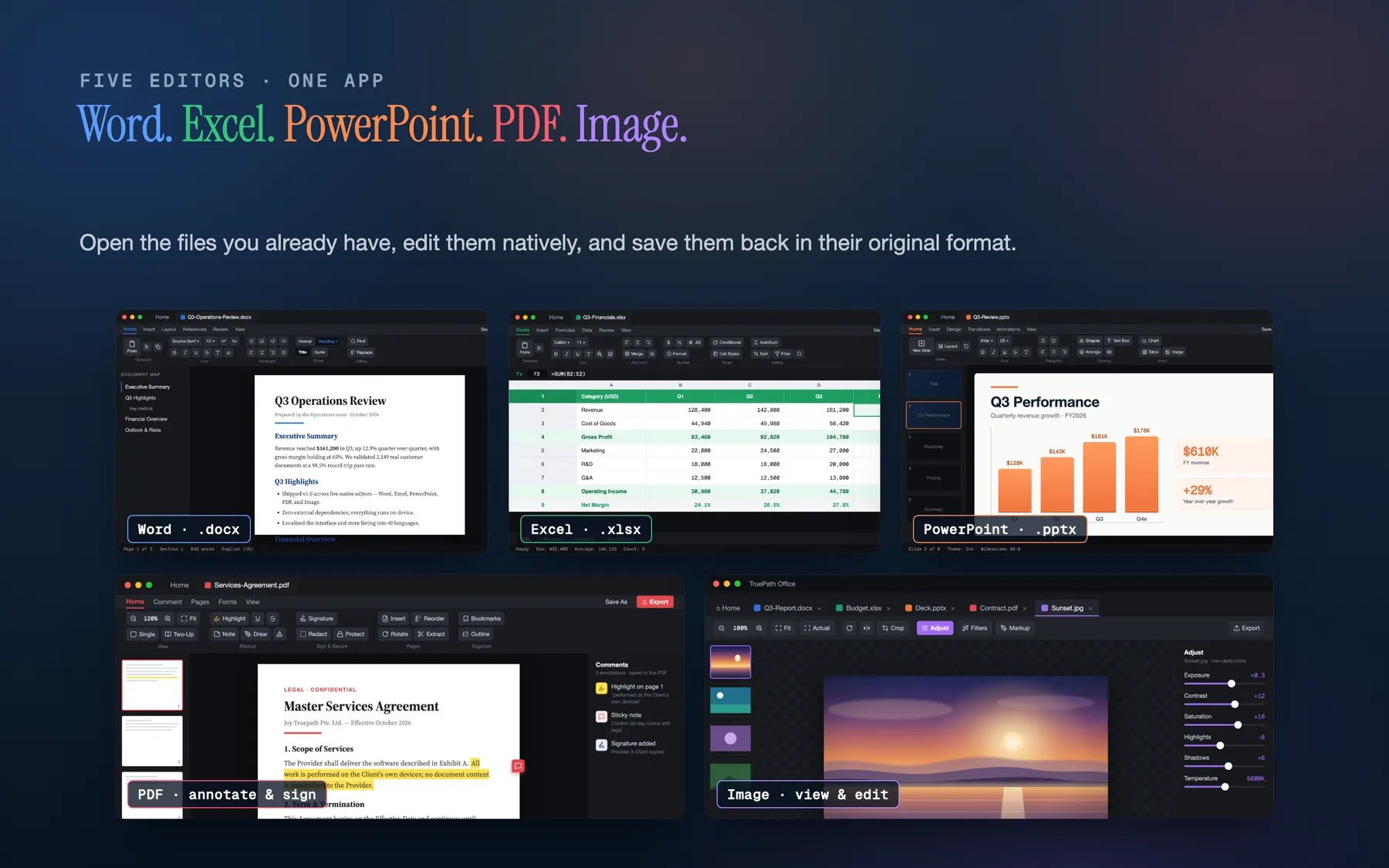
TruePath Office montage showing Word, spreadsheet, presentation, PDF, and image editing on Mac
2

Open, edit, and save back a real .docx file.

The current hub page explicitly claims native .docx open, edit, and save-back support. It also names common document structures such as bold, italic, underline, lists, tables, headers, footers, and page numbers. That is the right compatibility story for standard business documents and drafts exchanged with colleagues. This page stays conservative where it should: if the file depends on very specialized layout behavior or uncommon Word-only edge cases, review the result carefully. But the baseline claim is strong and important: the document stays a real .docx.
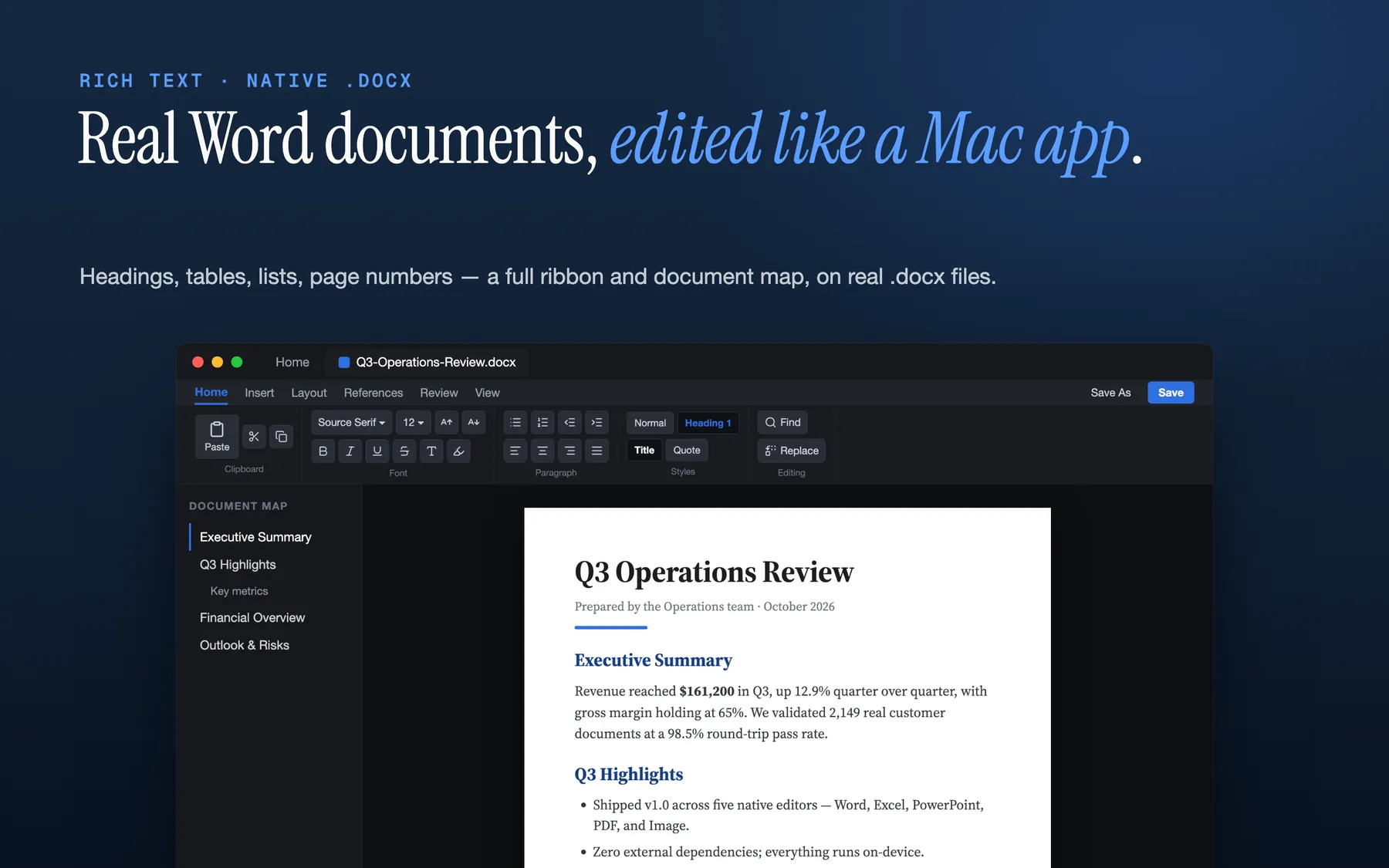
Editing a native .docx Word document in TruePath Office on Mac
3

Keep spreadsheet work in .xlsx instead of flattening it into a viewer.

The spreadsheet editor is described on the site as multi-sheet .xlsx with a live formula bar and support for common functions including SUM, AVERAGE, IF, MIN, MAX, and COUNT. That matters because spreadsheet compatibility is not just about seeing numbers. It is about retaining workbook structure and being able to change the model. Again, this page stays honest on scope: advanced formulas beyond the named set, macros, and VBA are not part of the current claims. But standard workbook editing inside the real .xlsx format is.
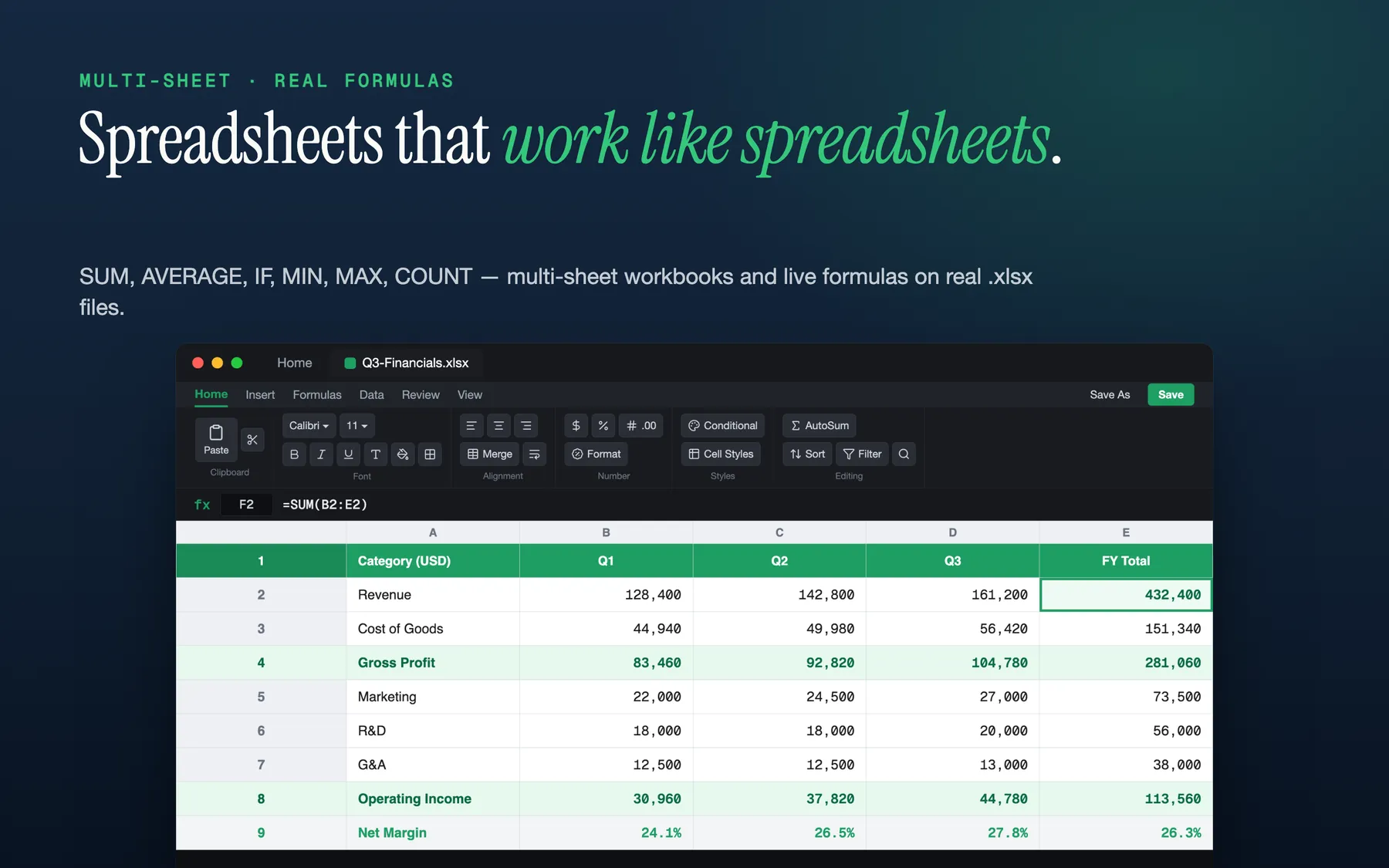
Editing a multi-sheet .xlsx spreadsheet with a visible formula bar in TruePath Office
4

Work on .pptx slides as slides, not as flat screenshots.

The presentation editor claim on the current site is deliberately specific: open and edit .pptx decks, with slides rendered structurally rather than as flat images, and present full-screen on Mac. That is the compatibility story most people need first. You can revise the deck, not merely inspect it. This page also keeps the limits clear: advanced animations and specialty transitions are not part of the current promise. If your deck depends heavily on those, review carefully. If your need is standard slide content and same-format handoff, the current story is solid.
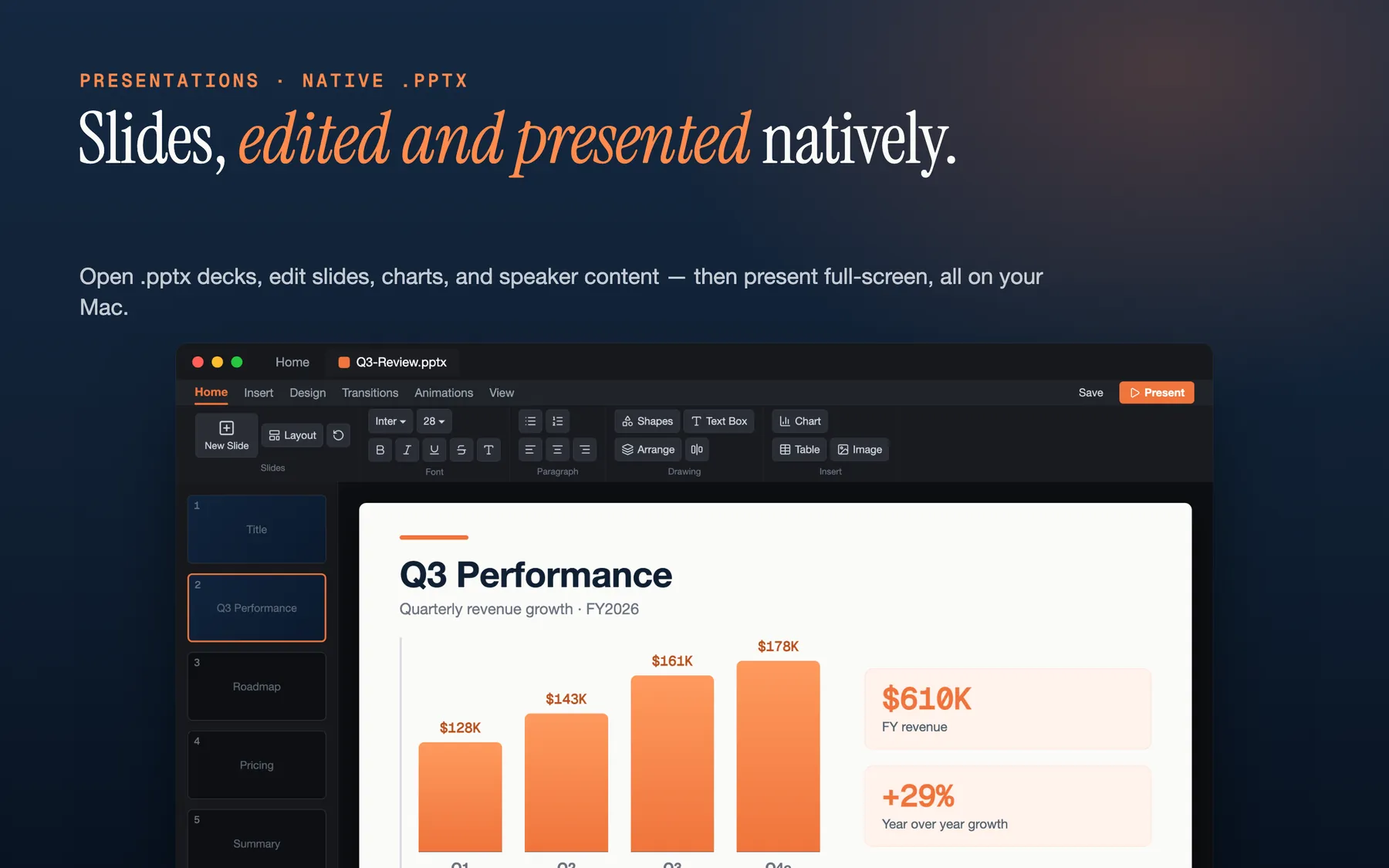
Editing a .pptx presentation slide in TruePath Office on Mac
5

Keep PDF work and quick image edits in the same local suite.

TruePath Office is not limited to Office documents. The current pages also describe PDF editing with annotations, signatures, page reordering, and bookmarks, plus common image formats for quick edits inside the same app. That matters because real file compatibility on Mac is rarely only one format deep. A client deck usually comes with a PDF appendix or an image asset. A proposal draft often travels with a signed PDF. The less you have to bounce between apps just to keep those files moving, the more useful the compatibility story becomes.
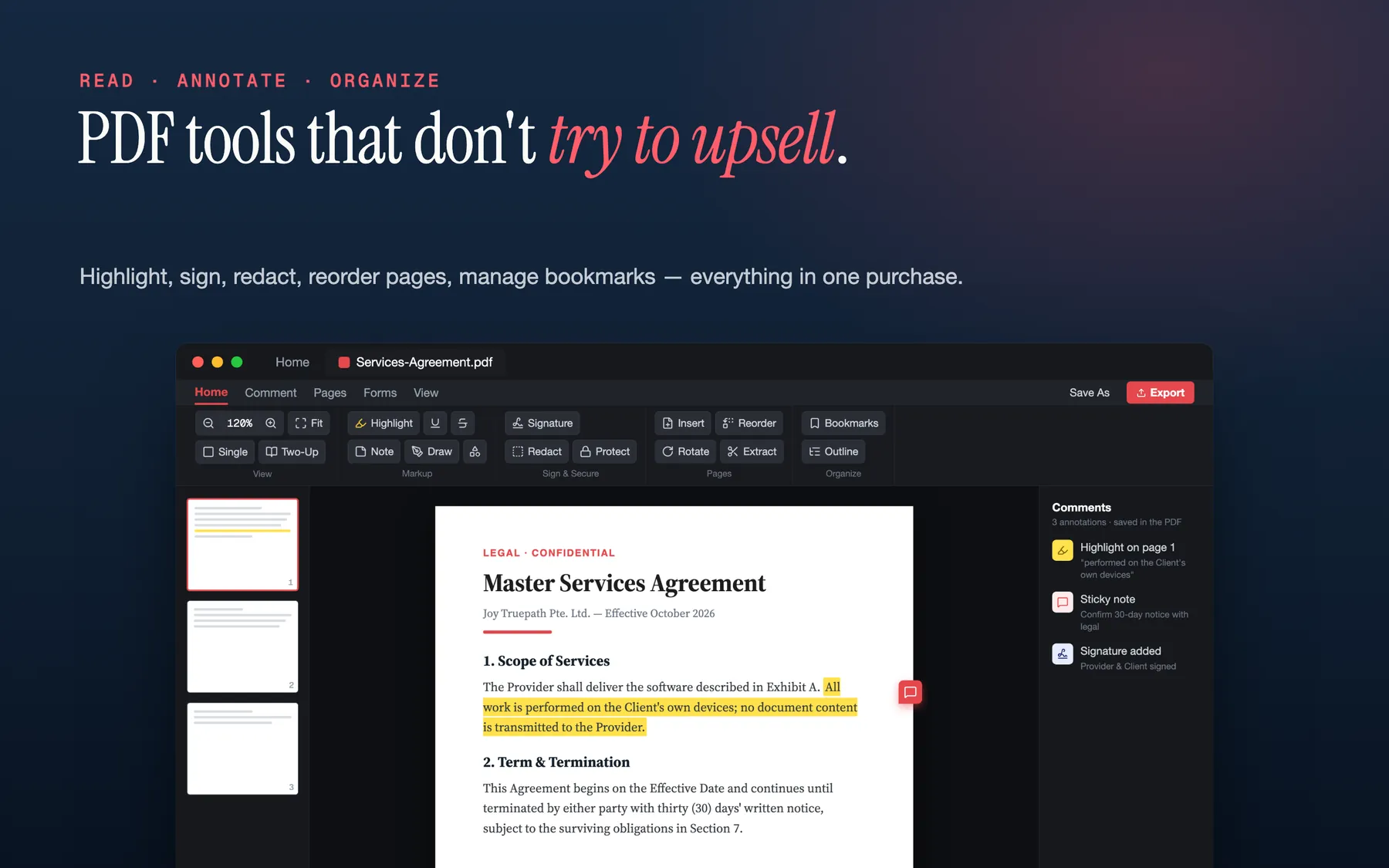
PDF editing interface in TruePath Office on Mac

Grounded compatibility strengths.

These are the practical claims the current product pages already support without stretching into features they do not promise.

Multi-format tab UI

The current site shows Word, Excel, PowerPoint, PDF, and image files living as tabs in one window. That is a real compatibility advantage when you compare related files side by side.

Native .docx / .xlsx / .pptx editing

The current claim is not just opening those formats. It is opening, editing, and saving them back in the same modern Office format.

PDF and image support

PDF files and common image formats are part of the same suite, which is useful for real mixed-file workflows rather than only Office-document workflows.

Single signed binary

The hub page describes a single signed binary with zero external dependencies. That is a clean product shape for a local office suite.

Fully offline

The current site explicitly says the full app works offline and makes no network calls of its own. Compatibility does not depend on a cloud session.

No telemetry stack

The current pages state no cloud sync, no third-party analytics, and no tracking. The emphasis stays on document handling rather than data collection.

Format by format

This is a deeper guide than the hub matrix, but it stays conservative and grounded. The point is to explain what the current claims mean in normal file-sharing scenarios, not to imply support for specialty features the product pages do not currently name.

.docx (Word)

TruePath Office explicitly says it opens and edits native .docx files and saves them back in the same format. The hub copy also names common document features such as bold, italic, underline, lists, tables, headers, footers, and page numbers. That is enough to make it a serious option for ordinary reports, proposals, notes, drafts, and business documents on Mac. This page stays conservative on complex formatting or specialty Word features: if a file is unusually elaborate, review the result before sending it back.

.xlsx (Excel)

The current spreadsheet story is multi-sheet .xlsx workbooks, a visible formula bar, and support for common functions including SUM, AVERAGE, IF, MIN, MAX, and COUNT, plus standard arithmetic and comparison operators. That covers a large amount of everyday spreadsheet work. This page does not claim support for VBA, macros, or every advanced formula family under the sun. The clean, grounded claim is: open the workbook, edit the workbook, and keep it as .xlsx.

.pptx (PowerPoint)

The presentation editor claim is that .pptx decks open and edit with structurally rendered slides, and that you can present full-screen. That is an important distinction because it means the deck is treated as a presentation document rather than as a flattened preview. This page deliberately avoids claiming advanced animation parity. If a deck depends on sophisticated transitions, validate it carefully. If the goal is standard slide editing, review, and save-back, the current compatibility story is strong.

PDF

The current site positions PDF as an editor, not just a viewer. Open a PDF, annotate it, sign it, reorder pages, and manage bookmarks inside the same suite. That is useful when your document workflow mixes office files with contracts, appendices, forms, or signed attachments. The practical compatibility advantage is that the PDF work does not force you into a second app the moment the office document turns into a reference file or final deliverable.

Image files

Common image formats are also in scope on the current site. The product page describes viewing and making quick edits to image files within the same app. That is modest but practical compatibility. It means logos, screenshots, diagrams, or figure assets can sit beside the document, spreadsheet, deck, or PDF they belong to without leaving the local suite.

Frequently asked

These answers focus on the compatibility concerns people actually have when the file came from someone else and still needs to go back out in a standard format.

Does it preserve Word formatting from files my colleagues send me?

TruePath Office explicitly claims native .docx open, edit, and save-back support. That is the right baseline for standard business documents. This page stays conservative on complex edge cases and does not promise perfect coverage for every advanced layout or specialty feature.

Can I edit Excel formulas?

Yes for the common formula set currently named on the site: SUM, AVERAGE, IF, MIN, MAX, and COUNT, along with the usual arithmetic and comparison operators. Macros and VBA are outside the stated compatibility scope.

Will PowerPoint animations carry through?

This page stays conservative. The current claim is that .pptx decks open and edit with structurally rendered slides and full-screen presentation. It does not promise parity for advanced animations or specialty transitions.

Can I save back to the same .docx, .xlsx, or .pptx file format?

Yes. TruePath Office explicitly states that opening and saving a .docx, .xlsx, or .pptx writes the document back in the same format rather than converting it into a proprietary file type.

What about cross-platform editing?

The app itself is Mac-only. The files are still the modern Office formats, which is why the practical handoff remains standard .docx, .xlsx, and .pptx files rather than a Mac-only private format.

What about macros and VBA?

Macros and VBA are not part of the current compatibility claims. TruePath Office is positioned around the document, spreadsheet, presentation, PDF, and image content itself.

Will the file open in Microsoft Office afterward?

That is the intent of the same-format save story. The current site explicitly says files save back as .docx, .xlsx, or .pptx, so standard Office interop remains the goal rather than converting users into a private file system.

Keep the file formats people already send you.

Use a Mac-native suite that stays local, saves back in the same modern formats, and does not require a broader cloud bundle just to edit ordinary documents.

Open in Mac App Store Get launch notification