TruePath Recorder gives developers, QA, and support teams a native Mac capture flow for reproductions that are easy to watch, small enough to attach, and specific enough that the next person can actually retrace what happened.
Text-only bugs fail for predictable reasons: the repro steps are incomplete, the wrong window is visible, or the clip is too large to throw into Linear, GitHub, or Jira without a cleanup pass. Recorder is useful when you need to capture the exact state, the exact input, and the exact moment the app goes sideways before your train of thought disappears.
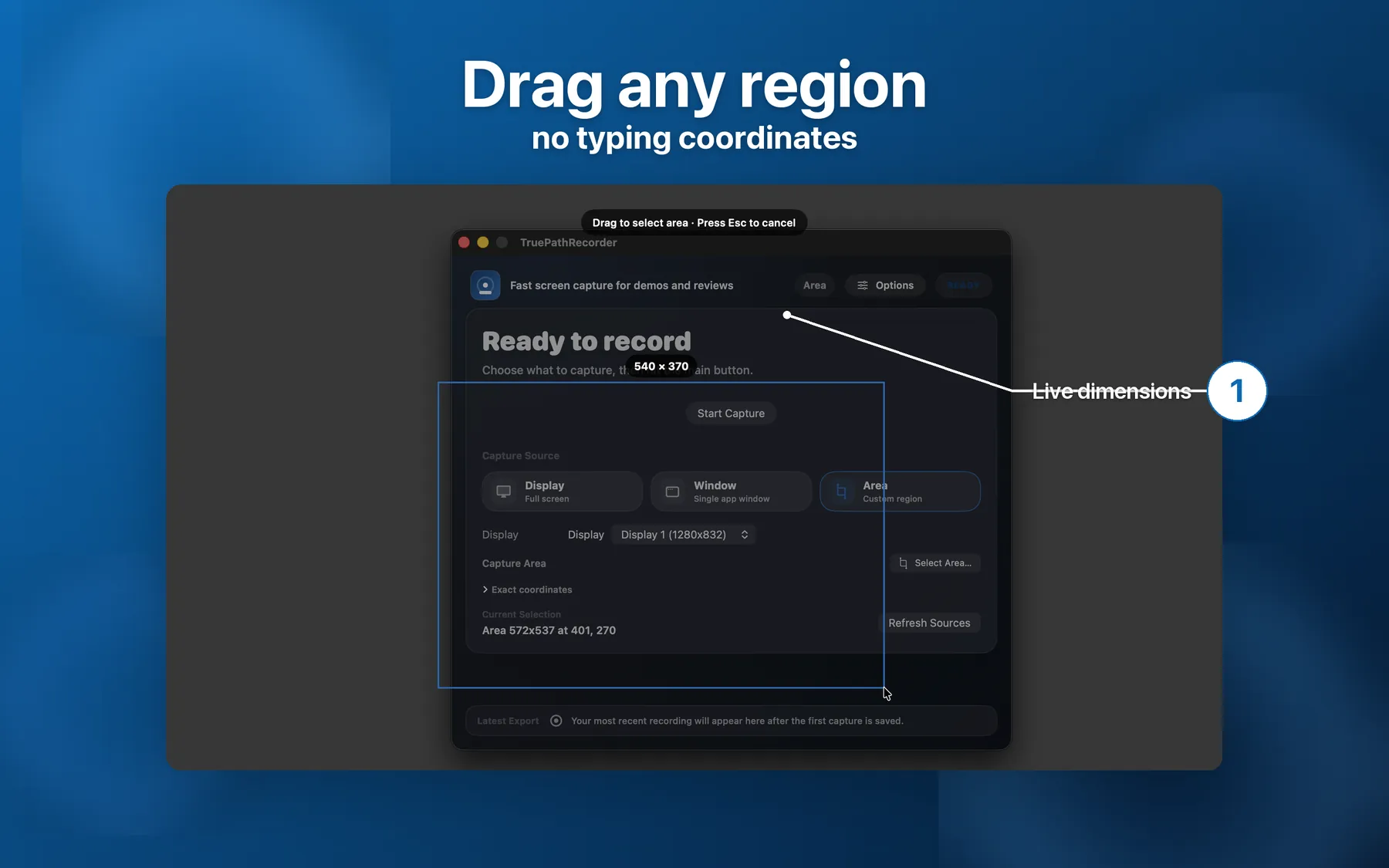
Use drag-to-select when you want only the broken pane, or switch to window capture when the app itself is the boundary that matters. Either way, the report stays focused on the bug instead of exposing your IDE, chat sidebar, or everything else currently open on your desktop.
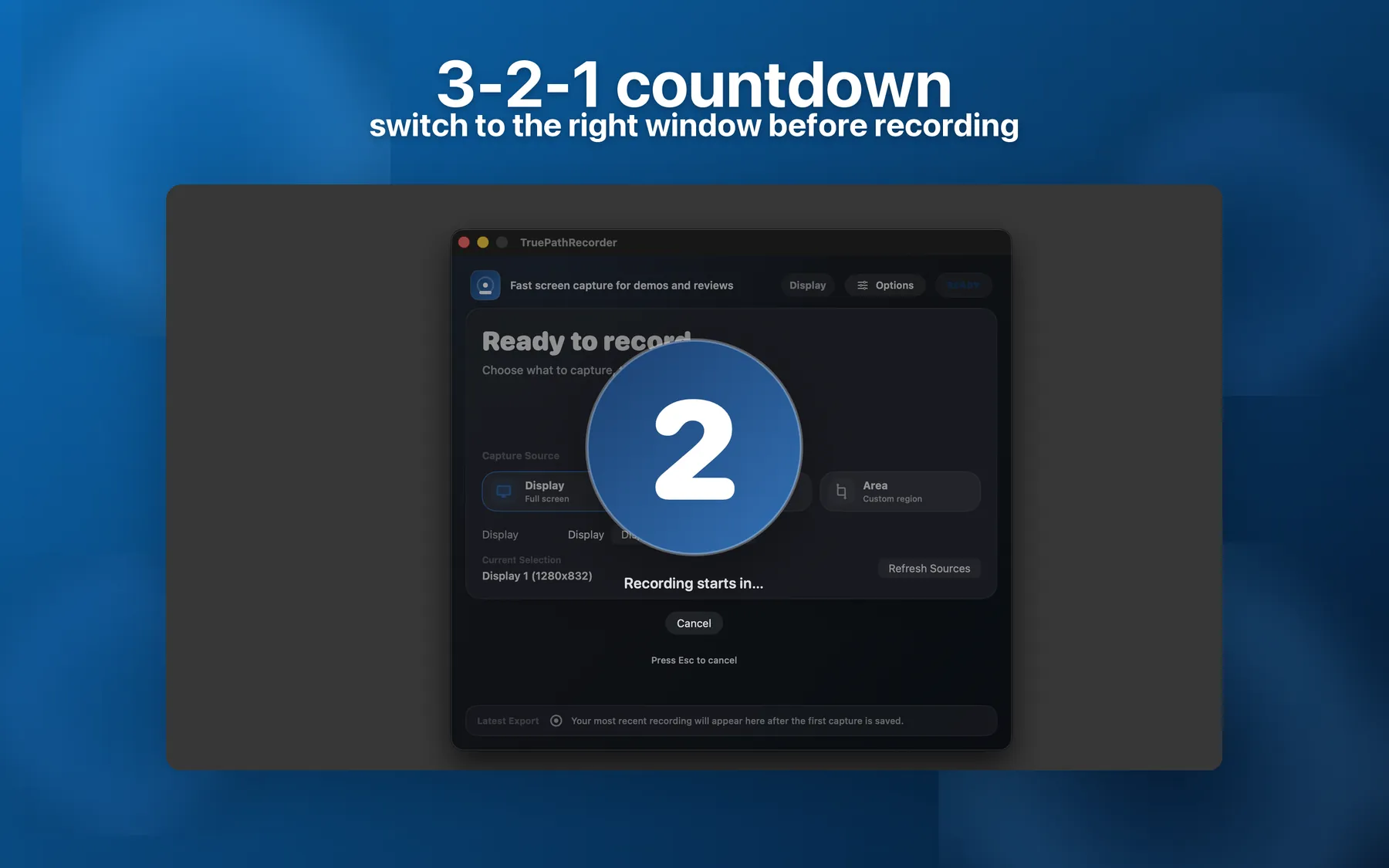
The 3-2-1 overlay buys you a few seconds to put the app into the unstable state before the recording begins. That matters for bugs that only appear after a hover, a drag, a modal open, or a particular playback position, because the clip starts on the action instead of on frantic setup.
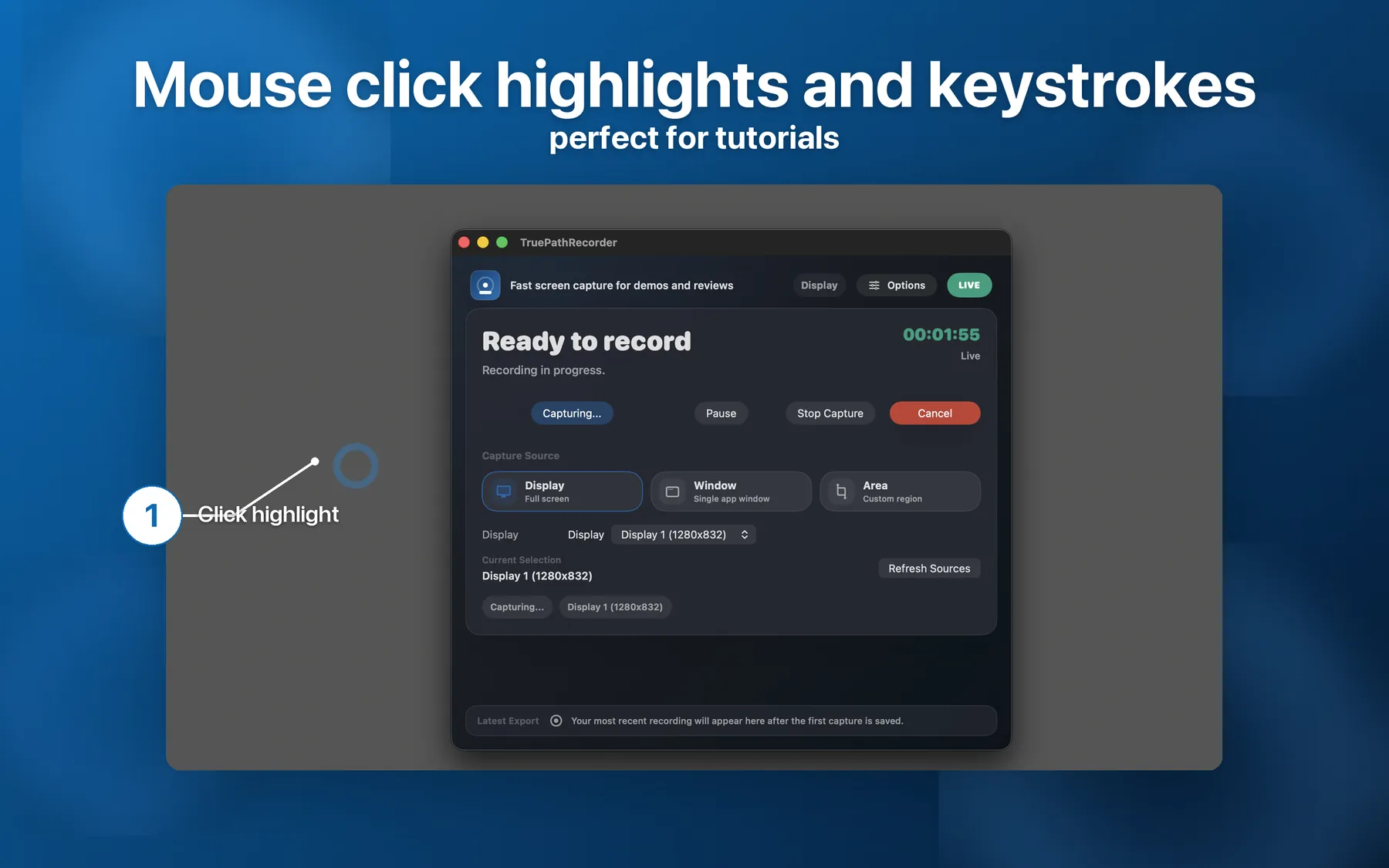
Click highlights and on-screen keystroke overlays remove the usual ambiguity around what you actually pressed. That turns a vague note like reproduce by opening preferences and hitting the shortcut into a clip where the engineer can see the exact click path and the exact keyboard sequence that caused the failure.
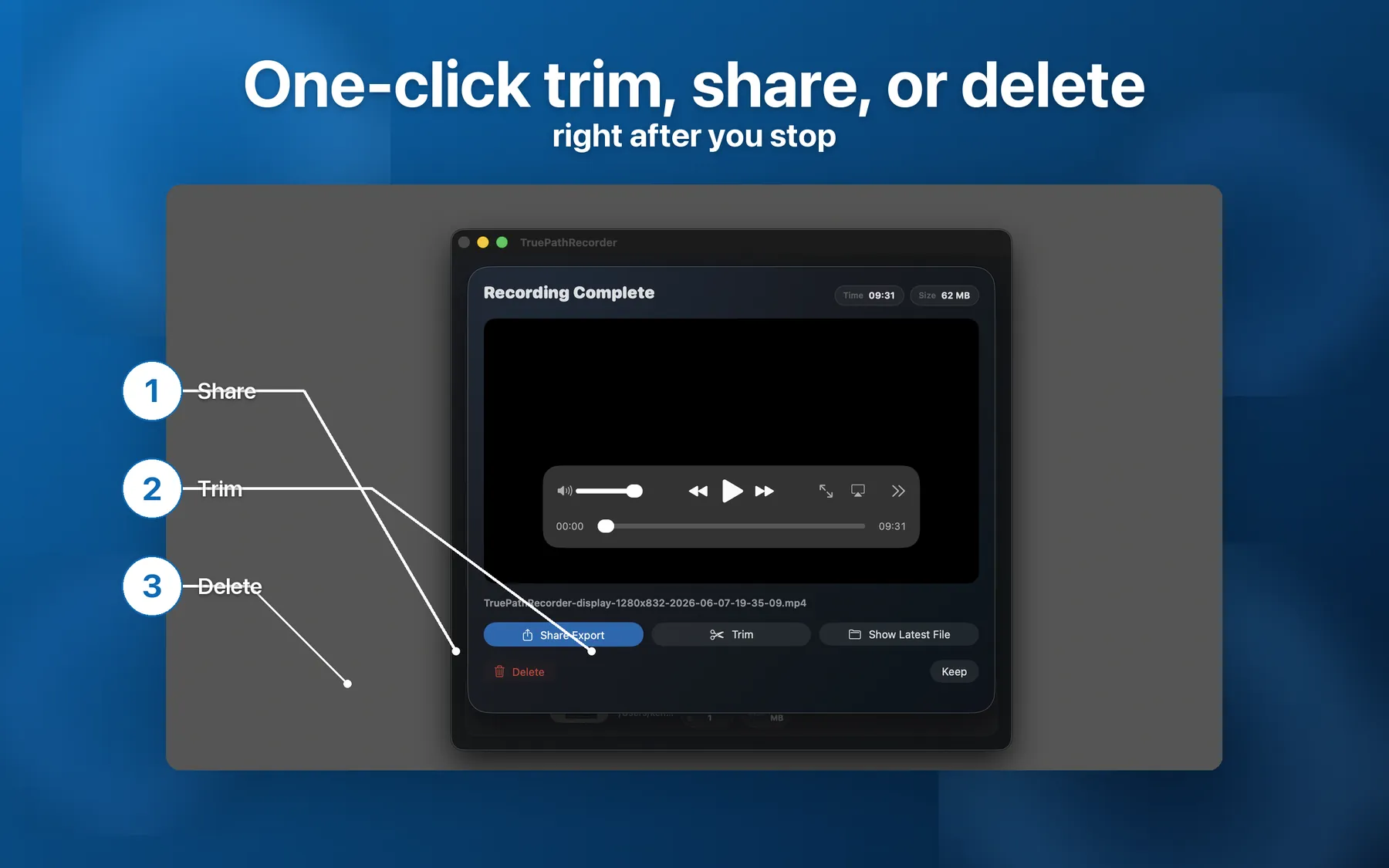
When you stop, Recorder opens the post-recording sheet with Save, Trim, Share, Reveal in Finder, and Delete. That is the useful moment for bug reporting: cut the dead air, keep the eight seconds that matter, then move the clip into the issue while the reproduction details are still fresh in your head.
Recorder is not trying to be a cloud workspace or a team-video product. It is a local Mac recorder with a short list of features that matter when you are capturing repro evidence under time pressure.
Recorder can use HEVC, which the existing product page describes as typically about 50% smaller than H.264 at the same quality. That is the difference between a bug clip you upload immediately and one you postpone because the file is bloated.
If the bug only lives in a small part of a Retina or 4K screen, cap the output to 1080p or 720p. You keep the reproduction readable without paying the attachment-size penalty of the full desktop resolution.
Audio bugs are hard to report with still images. Recorder can include system audio from the same permission flow as Screen Recording, so you can capture the crackle, missing cue, desync, or clipping exactly as it happened.
The app-store release notes explicitly call out display, window, and area capture. That gives support, QA, and engineering teams a practical choice between a whole-screen repro and a tightly bounded clip that shows only the failing surface.
A red recording icon and live elapsed timer stay visible in the menu bar. That sounds minor until you are waiting for a flaky bug to recur and need a constant reminder that the capture is still running and can be stopped with one click.
If Recorder quits mid-session, the next launch scans for orphaned recordings and surfaces the file instead of silently discarding it. For intermittent bugs that only happen once every hour, that recovery path matters more than another editing flourish.
These are bug-report questions rather than the generic app FAQ: file size, issue-tracker attachments, trimming, and what happens when the capture itself goes wrong.
Usually yes. TruePath Recorder's trim flow saves MP4 clips, and HEVC plus optional 1080p or 720p caps help keep attachments smaller. The practical limit is the issue tracker's current upload policy, not a Recorder-only format.
Set Codec to HEVC in Preferences > Output Format; it is typically about 50% smaller than H.264 at the same quality. If your source is 4K or larger, cap the export to 1080p or 720p to shrink it further before attaching it to an issue.
Yes. Right after you stop, the post-recording preview sheet includes Trim, and Latest Export > Trim lets you clip it later. Trimmed clips save as a new MP4 alongside the original.
Yes. Recorder supports display, window, and area capture, so you can isolate the app that is misbehaving instead of dumping your whole desktop into the report.
Yes. Turn on Include System Audio in Preferences or the Options popover. macOS handles that permission under the same TCC prompt as Screen Recording, so there is no separate audio-router step.
On the next launch, TruePath Recorder scans for orphaned recordings and offers to keep or delete the partial file. Even if you dismiss the alert, the recovered file stays in your export folder.
Keep the failing app in frame, keep the clip small, and keep the reproduction steps visible enough that the next engineer can replay them without a meeting.