For tutorial creators

Built for the tutorial creator workflow.

A clean 3-2-1 start, region capture that survives across takes, click and keystroke overlays, and HEVC files small enough to upload between sips of coffee.

Download on the Mac App Store All Recorder features →

The recording flow tutorial makers actually have.

Course creators do not record once and ship. You record take 12, realise the demo terminal still says password123 from take 3, and start over. Recorder is designed so take 47 feels like take 1.

1

Set the region once. Use it for every take.

Drag-to-select the area you are demoing, or pick a specific application window. Recorder remembers the region across recordings so you do not re-frame for every retake.
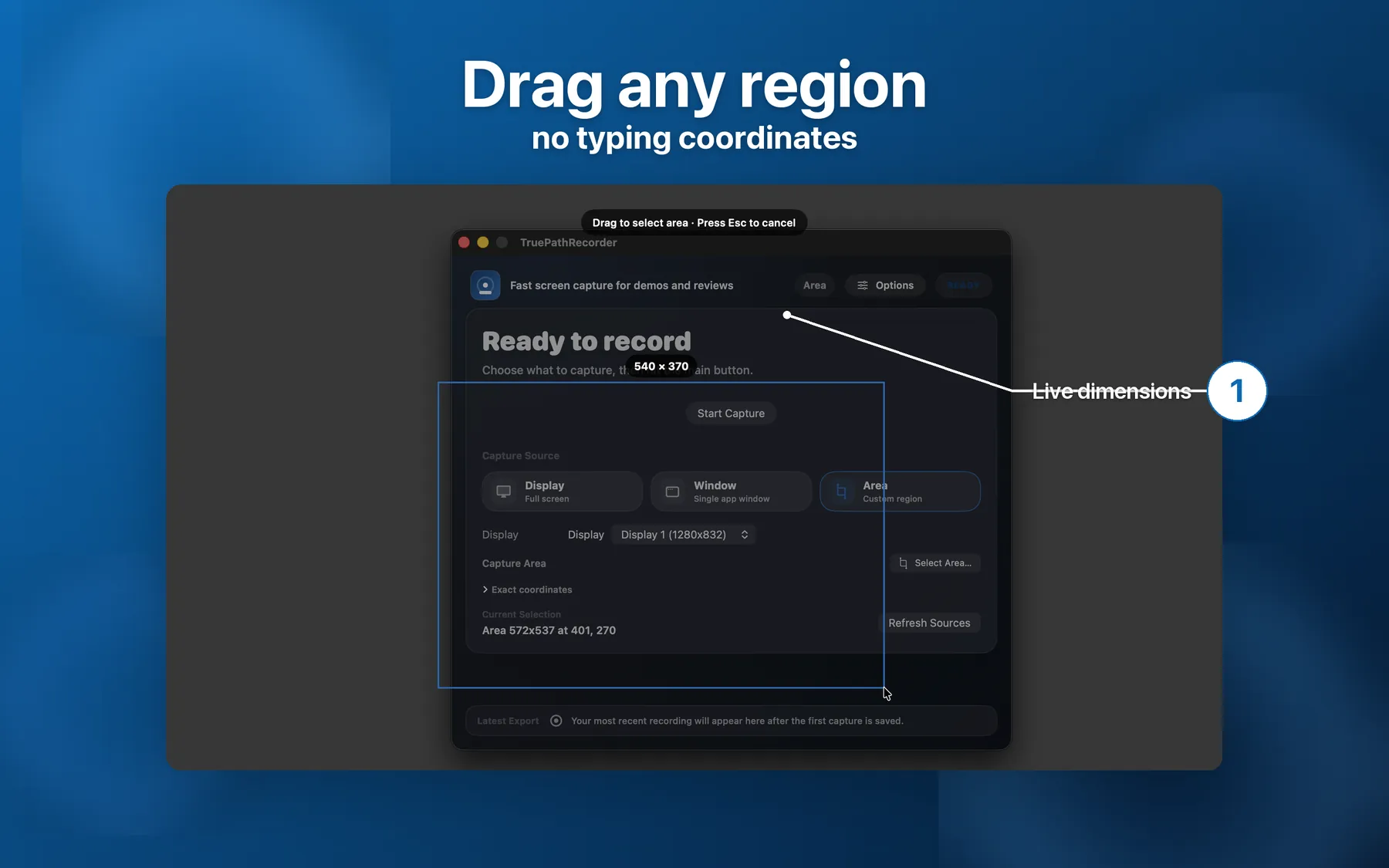
Drag-to-select region capture interface showing crosshair selection on a Mac display
2

3-2-1 countdown so the start is clean.

An overlay counts you down before recording starts. By the time you begin narrating, the countdown is gone. No one-two-testing warm-up bleeding onto tape.
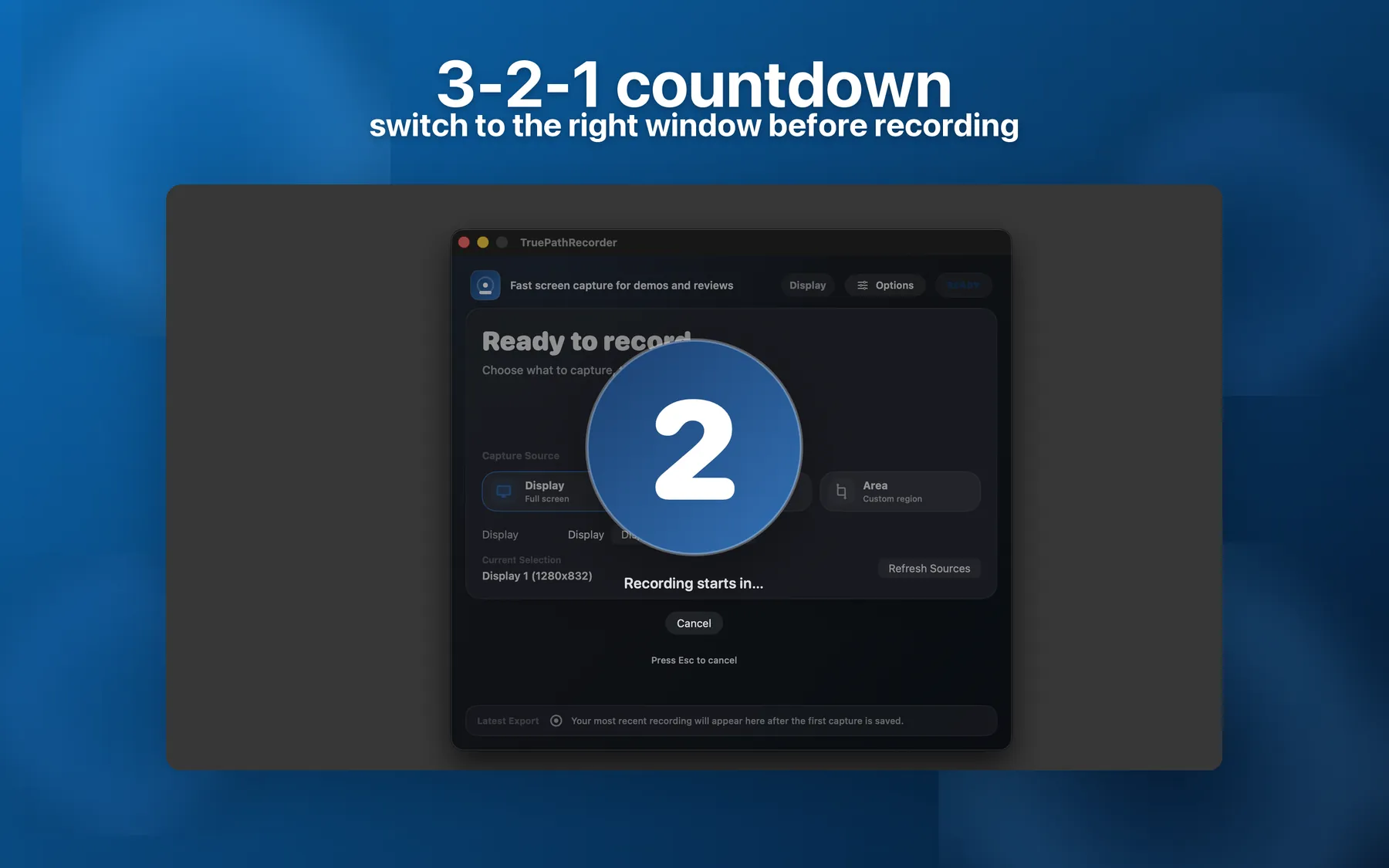
3-2-1 countdown overlay before recording starts
3

Click highlights + keystroke overlays let viewers follow along.

Opt-in mouse-click rings and on-screen keystroke captions show exactly what you pressed. Critical in shortcut-heavy tutorials where Cmd-Opt-K is invisible without it.
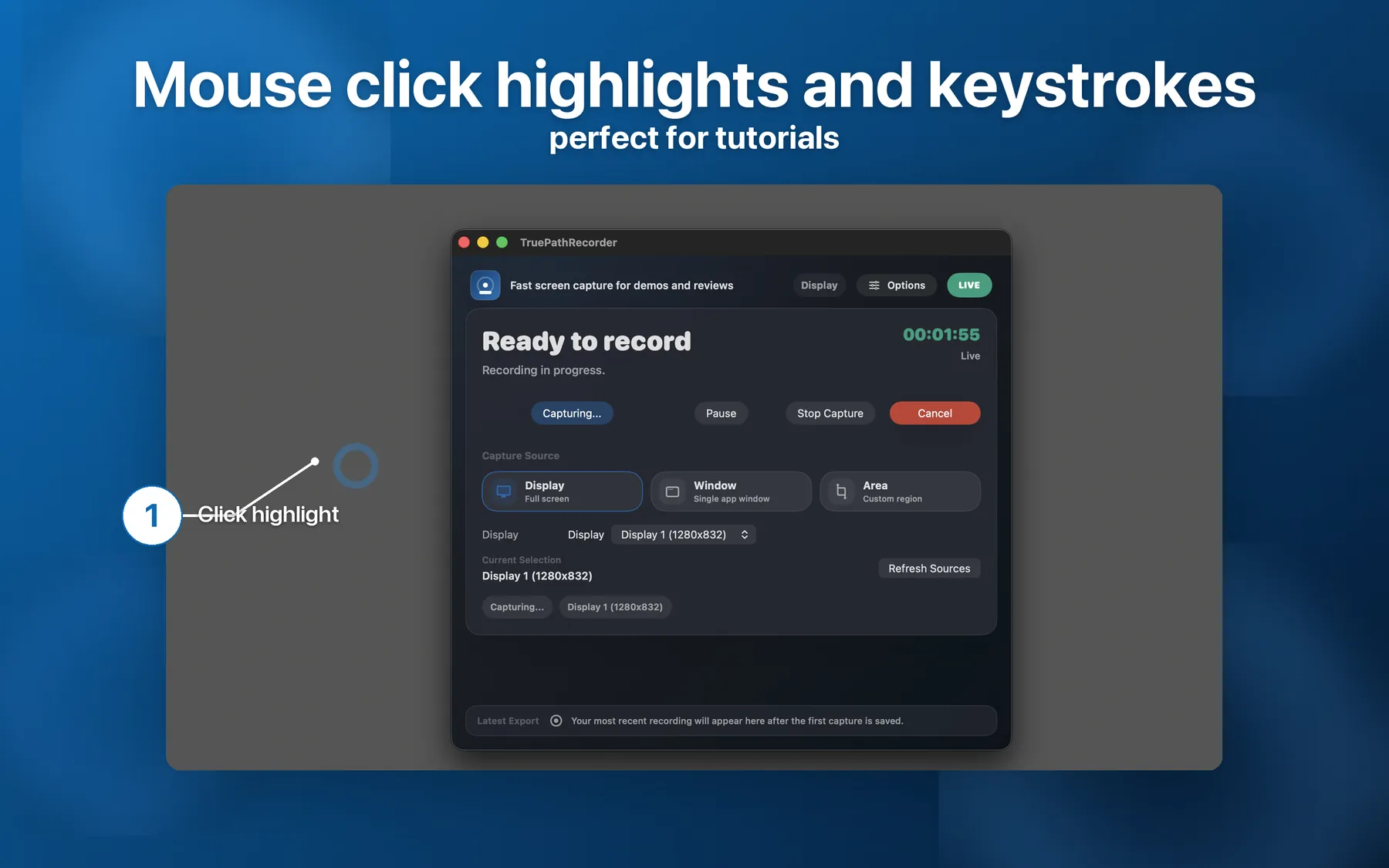
Tutorial overlays showing click highlights and keystroke captions during a screen recording
4

Save / Trim / Share — one sheet, every take.

When you stop, a sheet appears with the take ready: trim the dead air at the start and end, send to your editor, share to your course platform, or delete the bad take without digging through Finder.
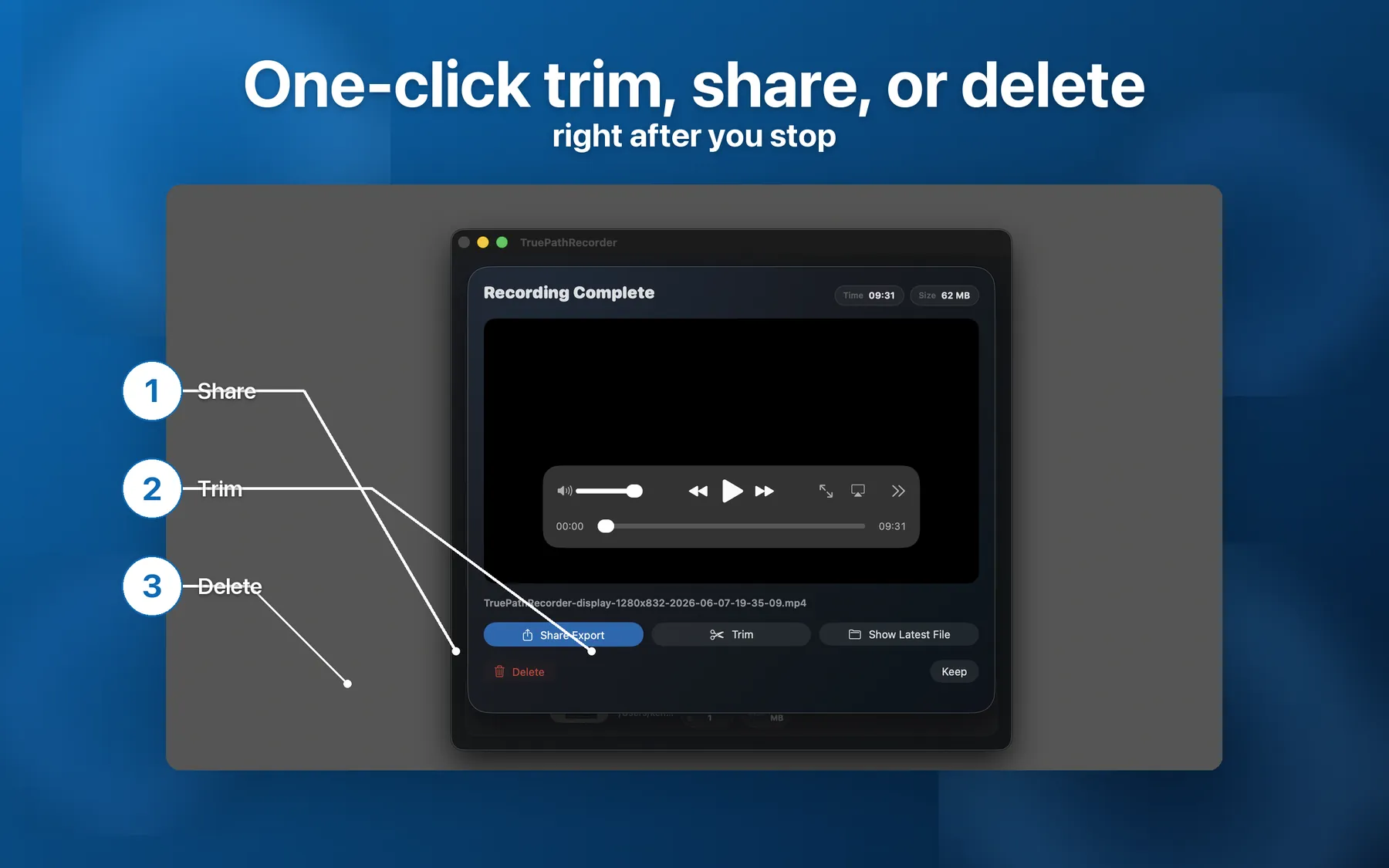
Post-recording sheet showing Save / Trim / Share / Delete options

Why tutorial makers ship with Recorder.

A focused feature set picked to remove the moments that make a course recording session feel terrible.

HEVC by default

Roughly half the file size of H.264 at the same visual quality. Means uploading a 30-minute lesson to Teachable, Thinkific, or Vimeo finishes in minutes, not an hour.

1080p / 720p caps

Optional resolution cap when you want the file even smaller. Useful for mobile-first courses or limited-bandwidth uploads.

System audio, no router hack

Captures app audio natively. macOS shares the system-audio permission with Screen Recording under the same TCC prompt. No Loopback, no BlackHole, no Audio Hijack.

Microphone toggle, per take

Toggle the mic independently. Useful for re-recording the screen on a take you liked the visuals of, then doing voiceover separately.

Menu bar status

Red icon and live timer in the menu bar so you never forget you are recording. Single click to stop.

Crash recovery

If macOS crashes mid-recording, the stranded file is surfaced on the next launch. Lost takes used to mean lost weekends.

Frequently asked

Specific to course creators and tutorial recording — not the generic Recorder FAQ.

Can I record system audio without a third-party audio router?

Yes. Toggle Include System Audio in Preferences or the Options popover. macOS shares the system-audio permission with Screen Recording under the same TCC prompt, so no extra confirmation and no Loopback / BlackHole / Audio Hijack routing is required.

What video format does it export, and will it work with my course platform?

Exports MP4 with HEVC encoding — typically about half the file size of H.264 at the same quality. Uploads to Teachable, Thinkific, Kajabi, Podia, Vimeo, and YouTube without further transcoding. Optional 1080p or 720p resolution caps for even smaller files.

Can I record just one window instead of my entire screen?

Yes. Pick a specific application window, a display, or drag-to-select an arbitrary region. The region is remembered across recordings so successive takes match without re-framing every time.

How do I avoid a one-two-testing warm-up at the start of every take?

Configurable 3-2-1 countdown overlay before recording begins. By the time you start narrating, the countdown is gone.

Can I show keyboard shortcuts and mouse clicks on screen?

Yes. Opt-in click highlight rings and on-screen keystroke overlays. Useful in shortcut-heavy tutorials where Cmd-Opt-K is invisible without the overlay.

What happens if my Mac crashes mid-recording?

Crash recovery surfaces the stranded file on the next launch so the take is not lost. Recordings also auto-stop before the disk drops below 100 MB free.

Make take 47 feel like take 1.

One-time $19 on the Mac App Store. No subscription, no cloud account, no per-recording fees.

Download on the Mac App Store