Start clean, capture only what students need to see, and export smaller files that are easier to upload. One-time $19 instead of another subscription line item in a school budget.
Teachers usually need to get a lesson out, not assemble a production stack. The current Recorder feature set maps well to that reality: press record, count down, show only the lesson window, make the cursor readable for students, then save or trim the result before posting it to the LMS. The point is less friction before homeroom, before office hours, or before a last-minute substitute lesson.
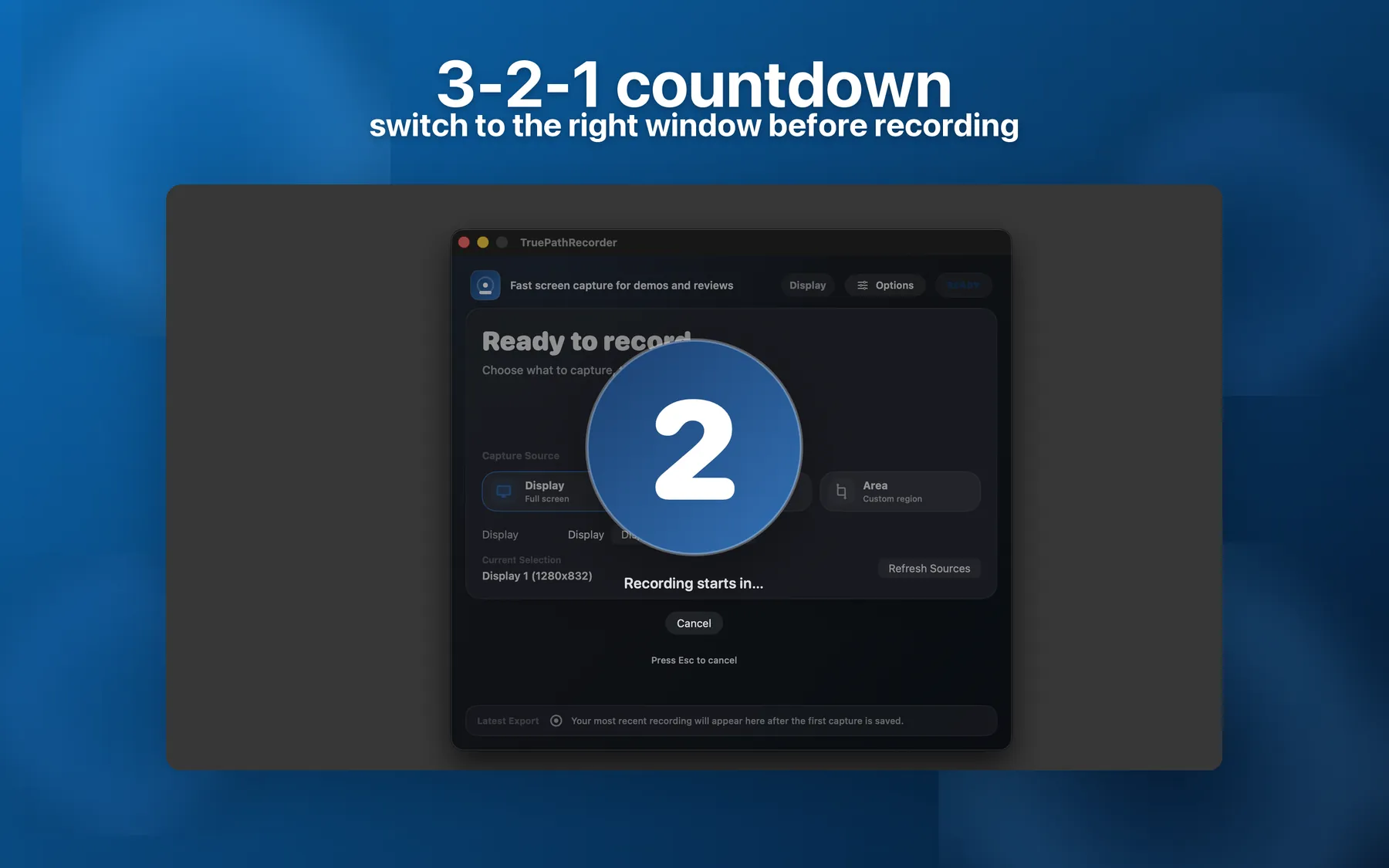
Recorder shows a configurable 3-2-1 overlay before capture begins. That sounds small until you record five mini-lessons in a row and realize how much time disappears into "okay, starting now" warmups. Teachers can click Start, switch to the slide deck or whiteboard app, take a breath, and start explaining when the countdown is gone instead of talking over the first seconds of the file.
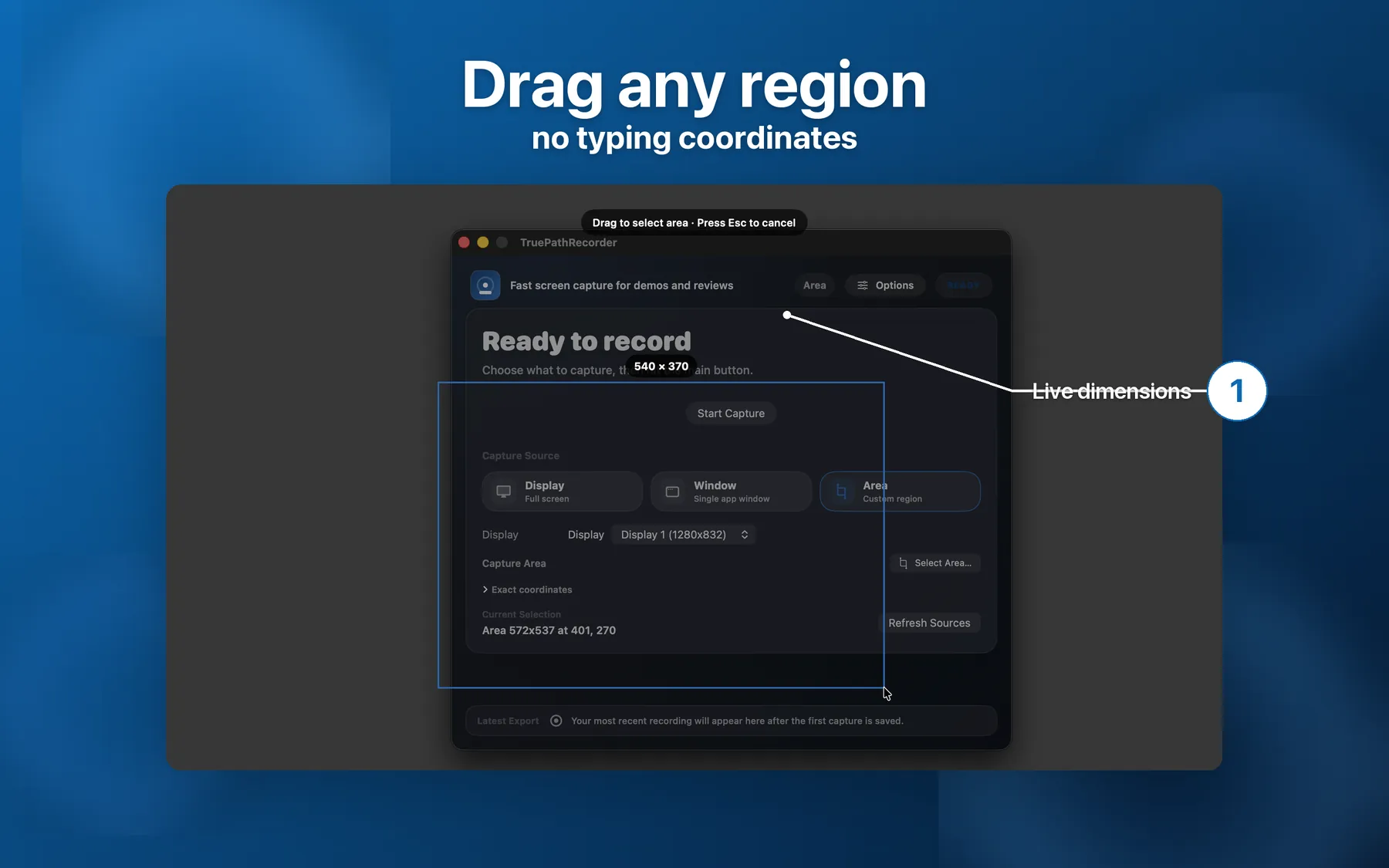
School machines are busy machines. Email, staff chat, gradebook tabs, and messages all sit nearby. Recorder lets you pick a specific application window, a whole display, or drag to select an exact region. That makes it easier to keep private inboxes and side conversations out of the lesson while still framing the content students actually need to watch.
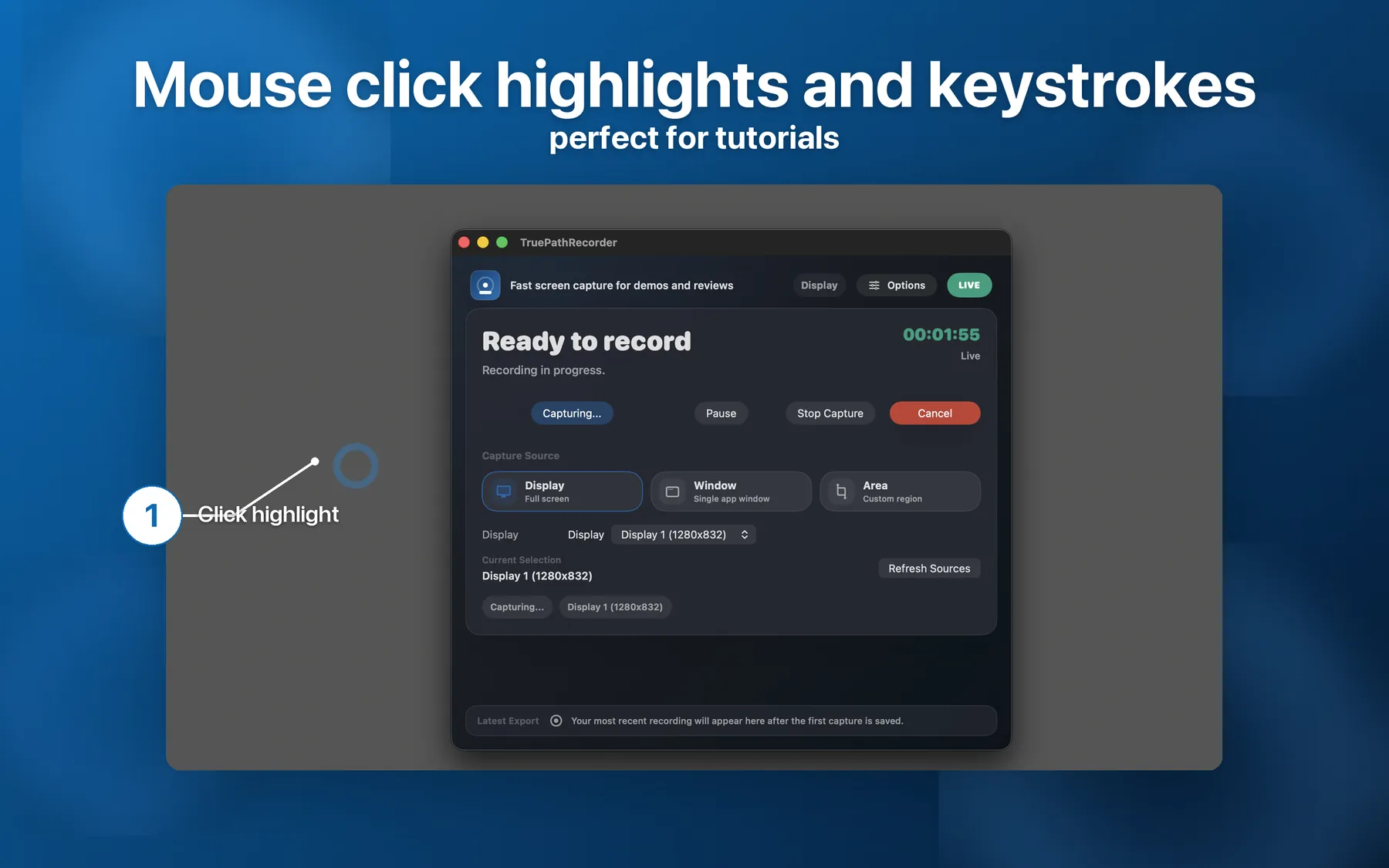
The current Recorder page explicitly calls out click highlights and keystroke overlays. In teaching terms, that means students can see where you clicked in a graphing tool, where you opened a menu, or which shortcut advanced the next step. It is the difference between "watch me do this" and "follow my exact path on your own iPad or Mac later."
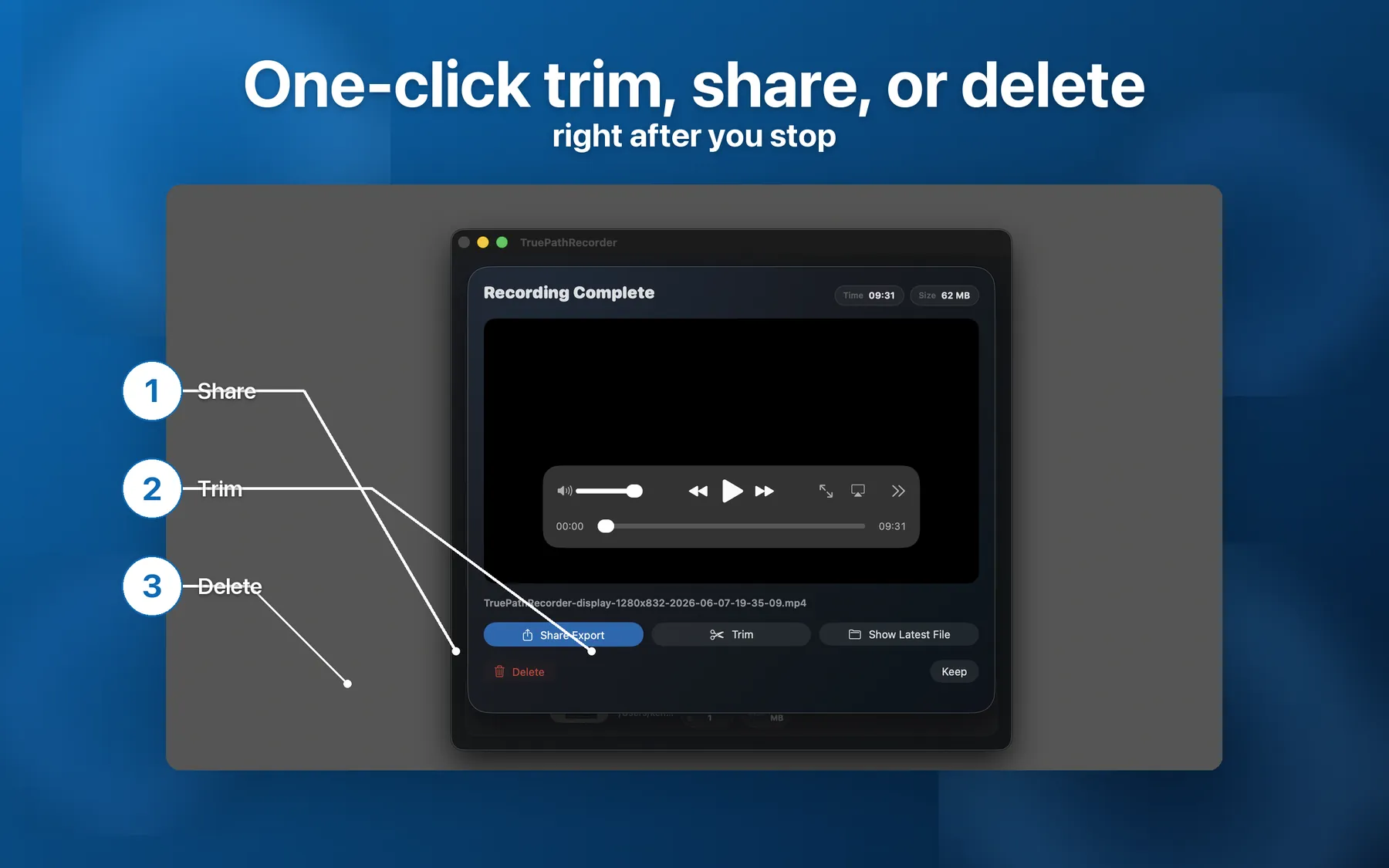
When the lesson ends, Recorder opens the post-recording sheet with Save, Trim, Share, or Delete right there. That is useful for practical teaching workflows: trim the first few seconds, keep the clean take, and move on to uploading the MP4 to your LMS. It is not trying to become a full editor. It is trying to get a lesson file into shape quickly enough that you still have time to plan the next class.
The current Recorder site already frames the product for teachers and demo makers. These are the parts of that feature set that matter most when the audience is students, parents, or substitute teachers opening the file later on limited devices and inconsistent school Wi-Fi.
Recorder offers HEVC, described on the product page as typically about 50% smaller than H.264 at the same quality. Smaller files are friendlier to school Wi-Fi, slower home connections, and families trying to stream or download on older devices.
Optional 1080p and 720p caps make it easier to keep classroom recordings practical for students watching on iPads or on a weaker connection. You can lower the export weight without rebuilding the lesson around a separate encoder.
If the lesson includes a pronunciation clip, a science simulation, or a video excerpt, system audio can be included directly from Recorder. The support page says macOS handles that under the same Screen Recording permission flow, so there is no separate audio-router setup.
Recorder ships with system-audio and microphone toggles. That gives teachers a clean way to switch between narrated walkthroughs, silent demo captures, or quick retakes without reworking the whole setup.
The changelog calls out a live timer and red record icon in the menu bar. When you are moving between slides and browser tabs, that status signal helps you confirm you are still recording without pulling students through a control panel.
If a recording session goes wrong, Recorder surfaces stranded files on next launch. For teachers who often record before class, after hours, or under deadline, recovering a half-finished explanation is much better than starting the whole lesson again.
Teacher-specific questions about permissions, LMS uploads, classroom privacy, and what the current pricing page does or does not claim.
Recorder uses the normal macOS Screen Recording permission flow. The first time you press Start Capture, macOS asks for permission. If it was denied earlier, go to System Settings > Privacy & Security > Screen Recording, turn TruePath Recorder on, then quit and reopen the app.
Recorder saves MP4 exports, and trimmed clips save as a new MP4 alongside the original. That keeps the output in a standard video format that fits ordinary LMS upload workflows without converting the lesson into a private format first.
The current product page does not advertise a fixed recording cap. In practice, the limit is available disk space. Recorder also auto-stops before the disk drops below 100 MB free, which is a more honest boundary than promising an arbitrary duration.
Yes. You can record a specific application window, a whole display, or drag to select a custom region. That makes it much easier to keep inboxes, messages, or unrelated tabs out of the saved lesson.
The current site presents Recorder as a one-time $19 Mac App Store purchase, but it does not advertise a department-wide license on this page. If you need purchasing terms beyond the individual app listing, ask support before rolling it out broadly.
No student or education discount is stated on the current Recorder site, so this page does not advertise one. If that changes later, the pricing information should come from the official app listing or Recorder pages.
One-time $19 on the Mac App Store. Clean starts, smaller exports, and a recording workflow that stays simple enough for everyday teaching.